
Art Maslow
Founder of Foxtery


Training can’t afford to lag behind change.
Products, processes, and policies keep evolving, and teams are expected to keep up. When training falls behind, people work with outdated information, and the business pays the price.
AI course creators change this by turning updates into training in minutes instead of weeks, as the comparison below shows.
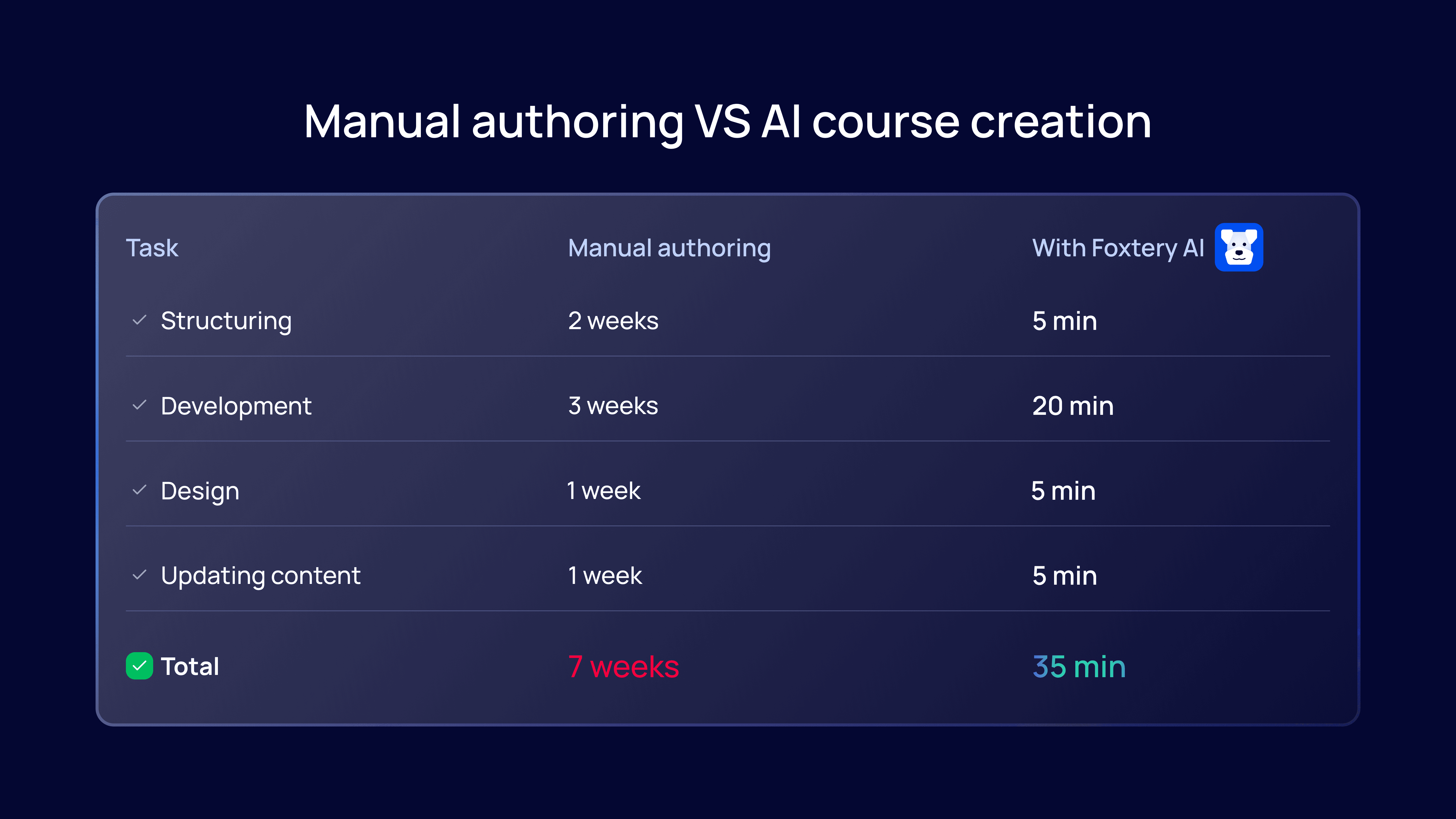
This pressure on L&D teams isn’t temporary. Many of the experts we spoke with see speed, adaptability, and AI-supported workflows as defining shifts in corporate learning over the next few years.
Where an AI course creator helps most
AI-powered course creation is especially useful when training needs to be:
Updated the same week a change happens
Rolled out across multiple teams
Reused and adapted as people join and leave
Typical scenarios include:
Product and feature releases
Customer support and sales enablement
Employee onboarding in high-turnover teams
Internal process or tool changes
Compliance and policy updates
In this guide, we’ll show how to build a real course step by step using Foxtery.
To keep it concrete, we’ll walk through a real example: building a short course to train booth staff for Web Summit, so they can confidently present the product after just a few days of prep. The same workflow applies whether you’re rolling out product updates, enabling sales and support, or onboarding new teams at scale.
To create a training course with an AI course creator, we’ll go through five simple steps:
Set the course context and choose the duration
Upload training materials in any format
Select learning objectives, formats, and methodologies
Review and approve the course outline
Generate lessons and supporting media
Let’s dive in.
How an AI bot guides you through the entire process
Inside an AI course creator, you’re never working alone. Throughout the entire course creation flow, there’s an AI bot on the side that acts as your guide.
In our case, we’d simply start by telling the bot what kind of course we want to build, in plain language, without any special prompting or setup.
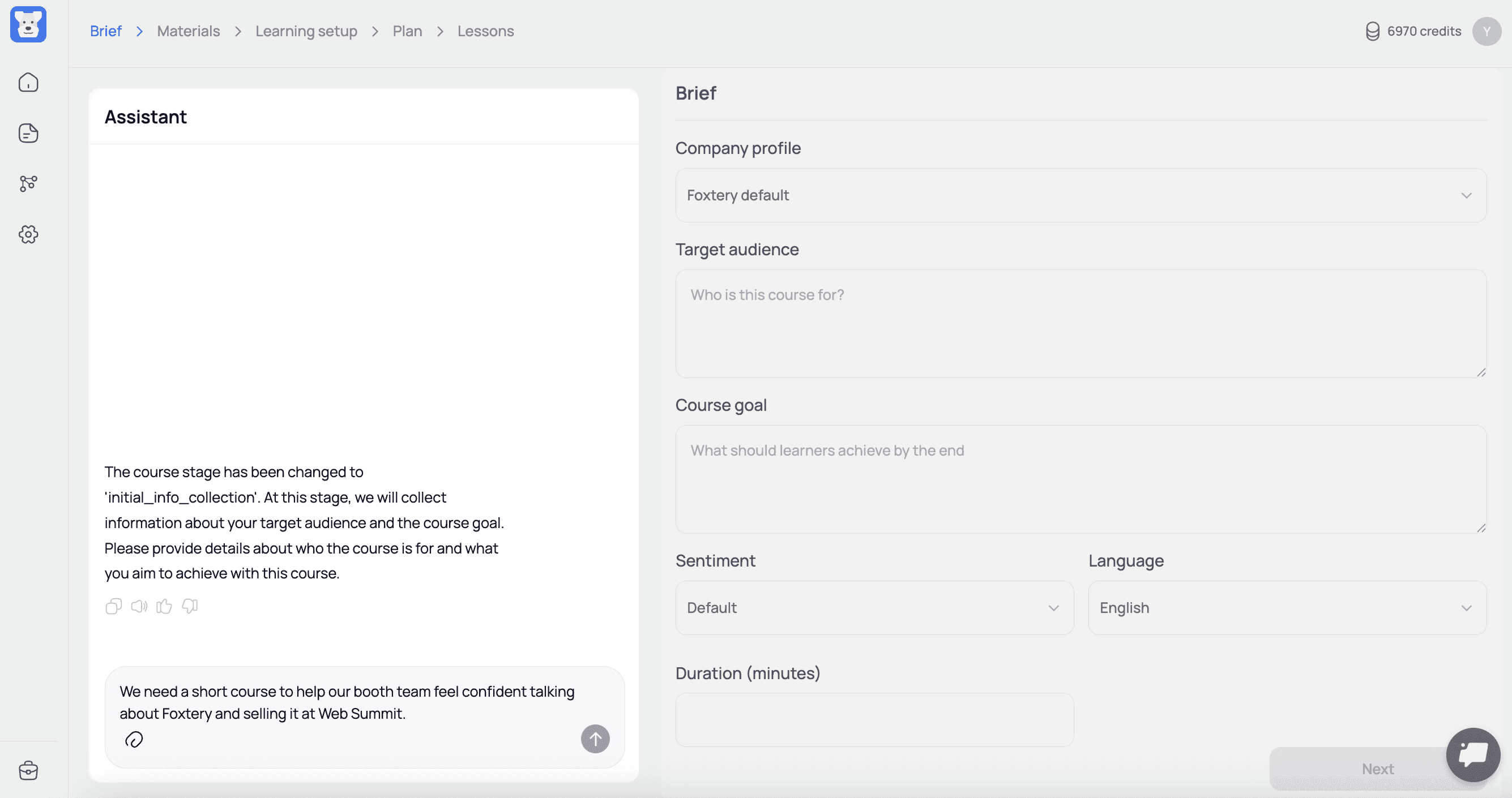
Instead of navigating settings or jumping between tools, you work through a simple dialogue. The bot explains each step and lets you adjust goals, structure, or lessons at any point by typing or speaking.
The AI keeps the full context of the course as you go and updates everything automatically. For L&D teams, this means less coordination work and a faster path from change to a ready-to-launch course.
Step 1: Set context in an AI course creator
At this point, we’ve already explained to the AI what course we’re creating: a short training to prepare booth staff to confidently present and sell Foxtery at the Web Summit conference.
Now we move on to adding business and learning context in the brief. As with any AI system, the quality of the result depends on the quality of the context you provide. The clearer and more specific you are here, the better the course will be.
In the brief, you provide:
Target audience
Course goal
Sentiment and language
Course duration
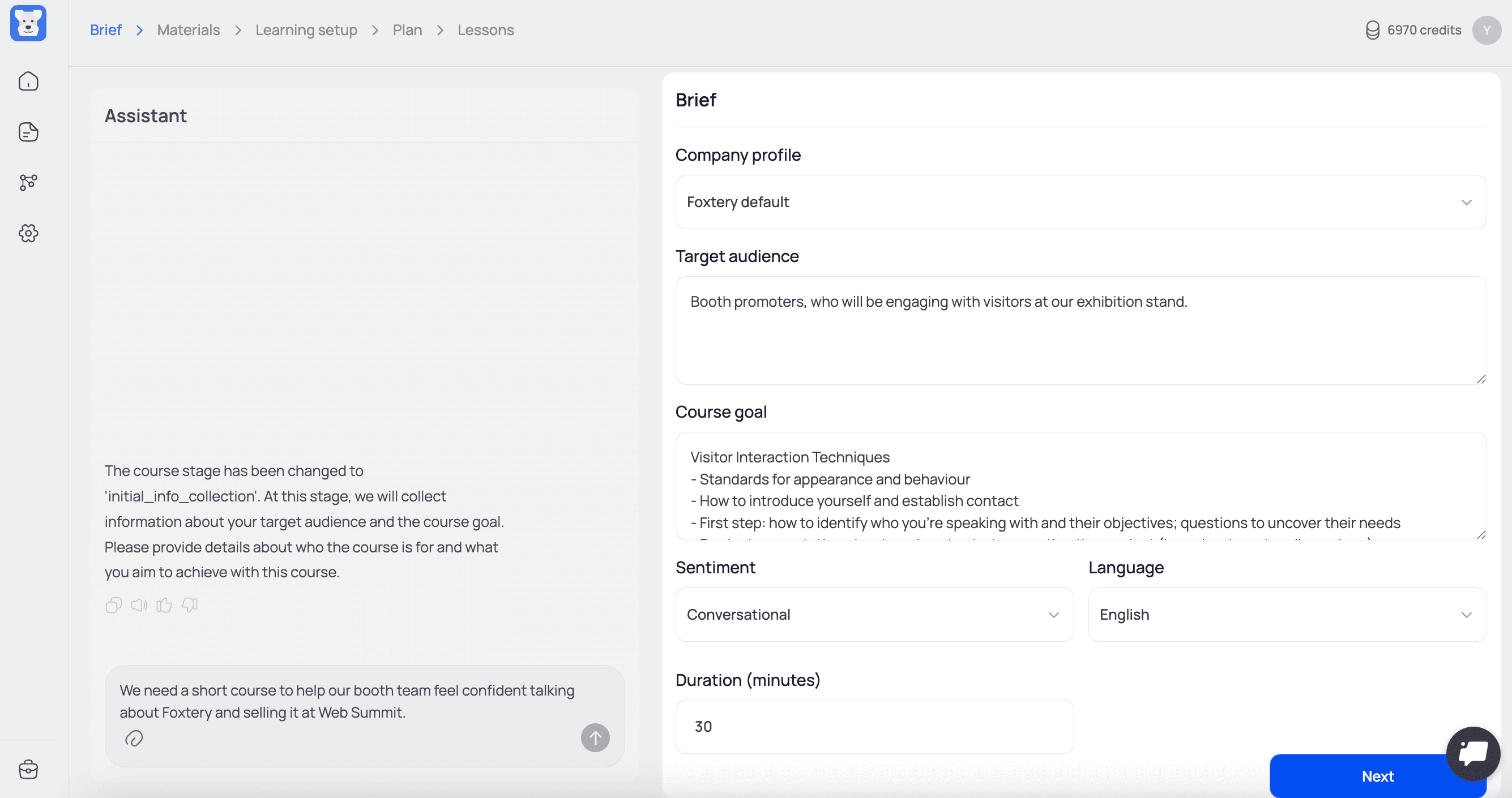
The duration field is important. This is where you decide how long the course should be, instead of letting the amount of content or materials determine its length.
For our case, the goal is a 30-minute course for booth staff who are new to the product and the sales flow. It needs to quickly bring them up to speed so they feel confident explaining Foxtery, answering basic questions, and engaging visitors during the conference.
Step 2: Add training materials to the AI course creator
At this stage, you add everything that already exists around the topic. Literally anything.
Think of all the knowledge that usually gets lost across Google Drive folders, Notion pages, Miro boards, or chat threads. Instead of cleaning it up or rewriting it, you drop it here and let it start working for you.
The AI course creator doesn’t expect “learning-ready” content. It’s designed to take raw, messy inputs and turn them into structured training.
If you’re preparing a team for an event, you can simply:
add the conference plan and daily schedule
include a product guide made in Loom or generated in Synthesia
share a description of your mission, vision, and target audience
That’s exactly what we did to prepare the booth team for Web Summit.
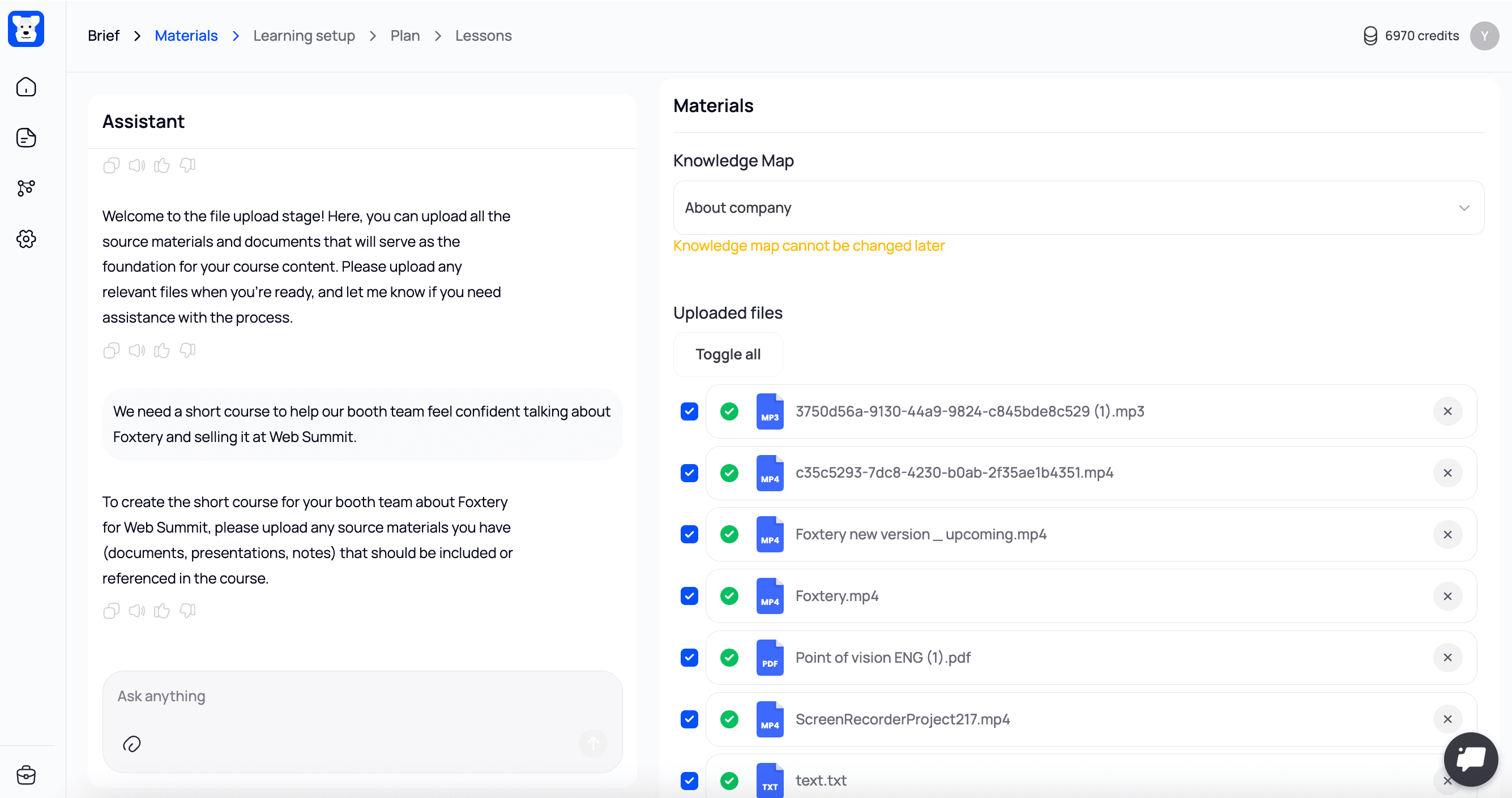
Once the materials are in, the AI uses them as the source of truth for everything that follows: objectives, structure, lessons, and examples.
Step 3: Choose learning objectives, formats, and methodologies
With the materials in place, the AI proposes how the course should be built across three areas: learning objectives, formats, and methodologies.
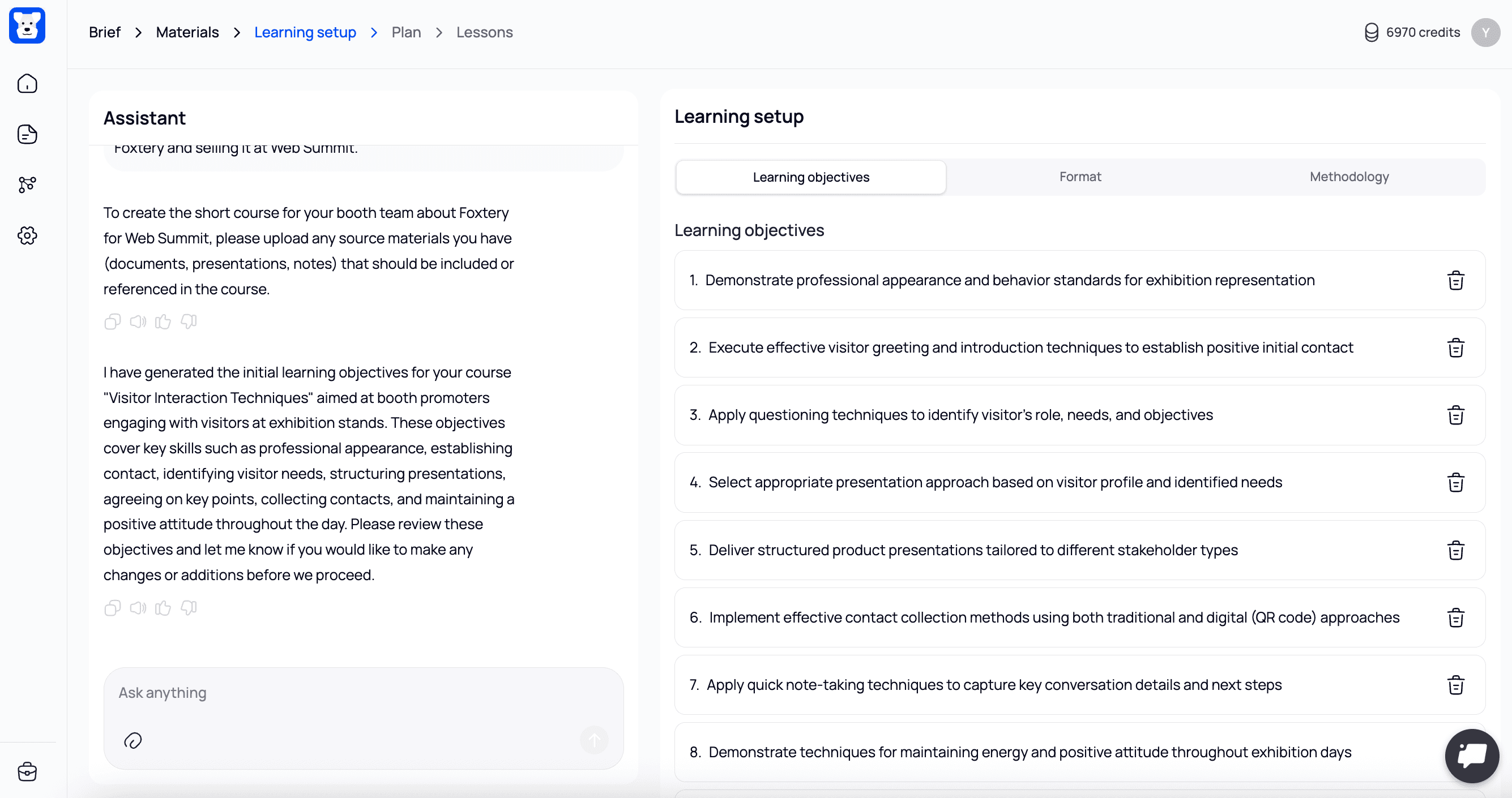
Learning objectives
The AI suggests learning objectives based on the context and materials you provided. You can:
edit them
delete them
or ask the AI bot to change them.
In our case, the suggested objectives already match what the customer support team needs, so we keep them as is.
Learning formats
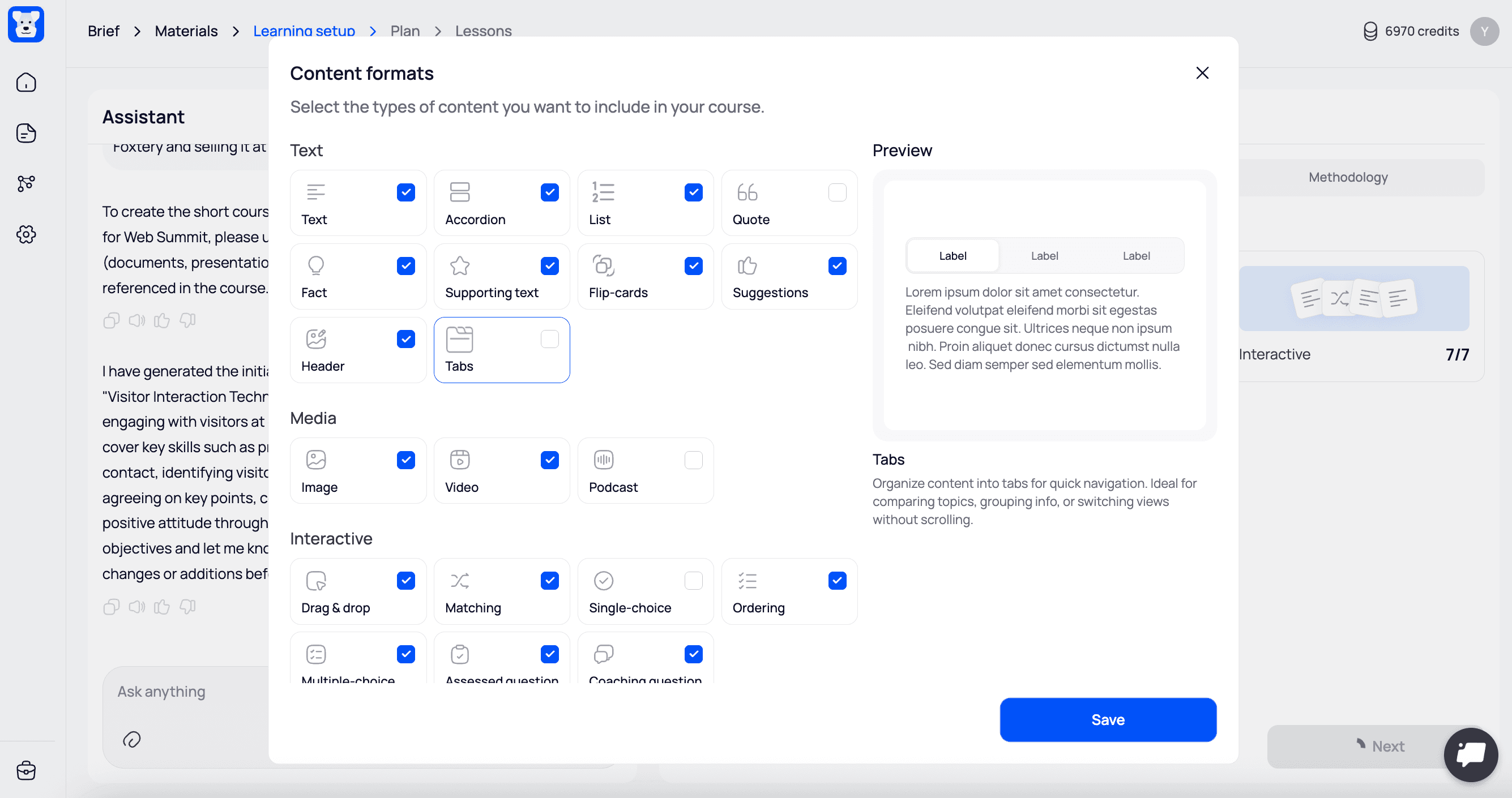
Foxtery supports 20 learning formats, including text-based explanations, visuals, and quizzes. The AI recommends formats that best support the learning objectives.
At this stage, you can exclude any formats you don’t want to use, or simply trust the AI to select the most relevant ones for you.
Methodologies
Foxtery uses 20 instructional design methodologies and links them directly to the learning objectives. L&D teams can adjust these to follow their preferred frameworks or simply trust the AI to apply proven approaches automatically.
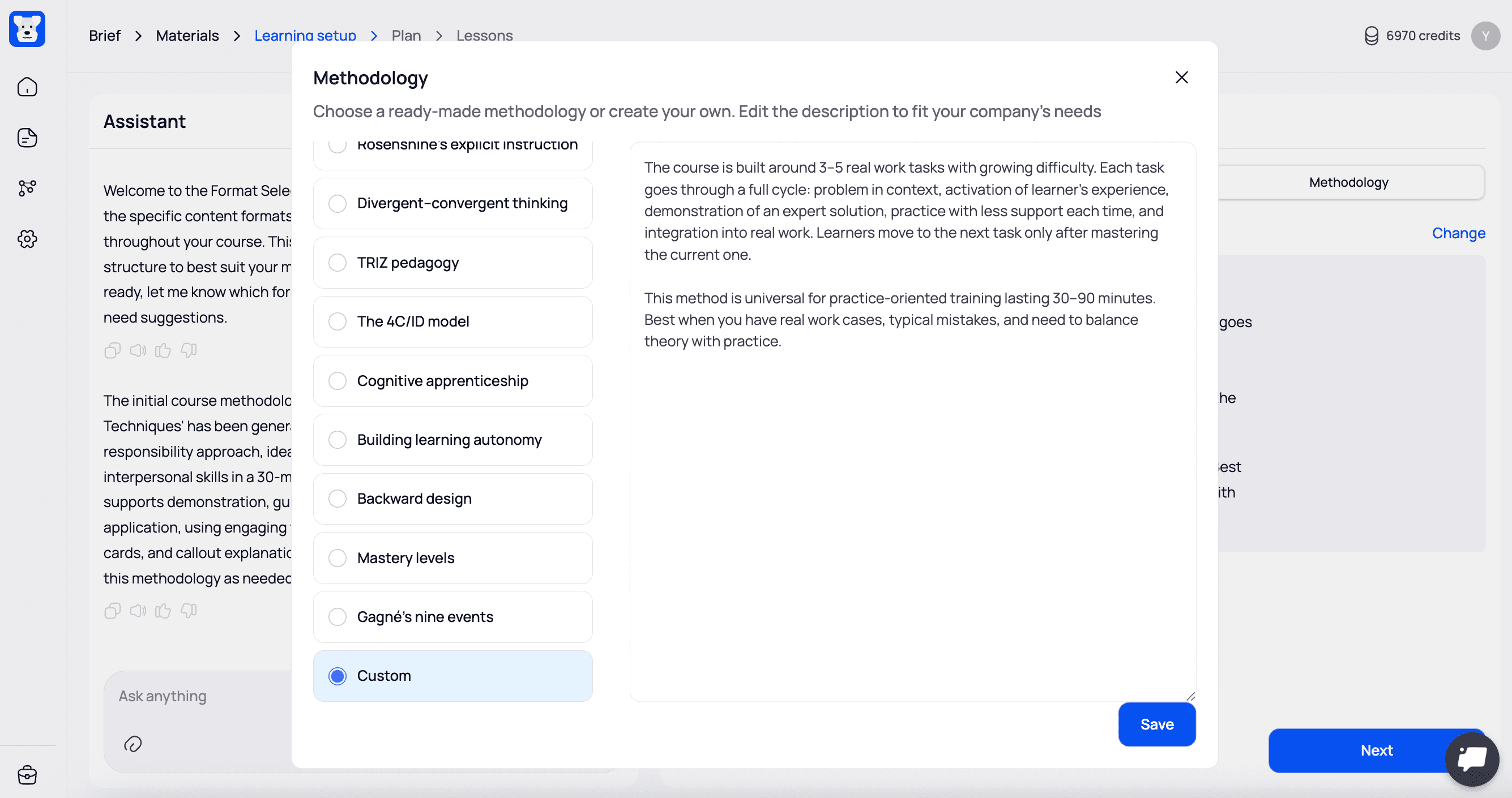
This logic is part of how the AI connects learning goals, formats, and methodologies automatically. We explain how this works under the hood in more detail in a separate post.
Step 4: Create a course outline with an AI course creator
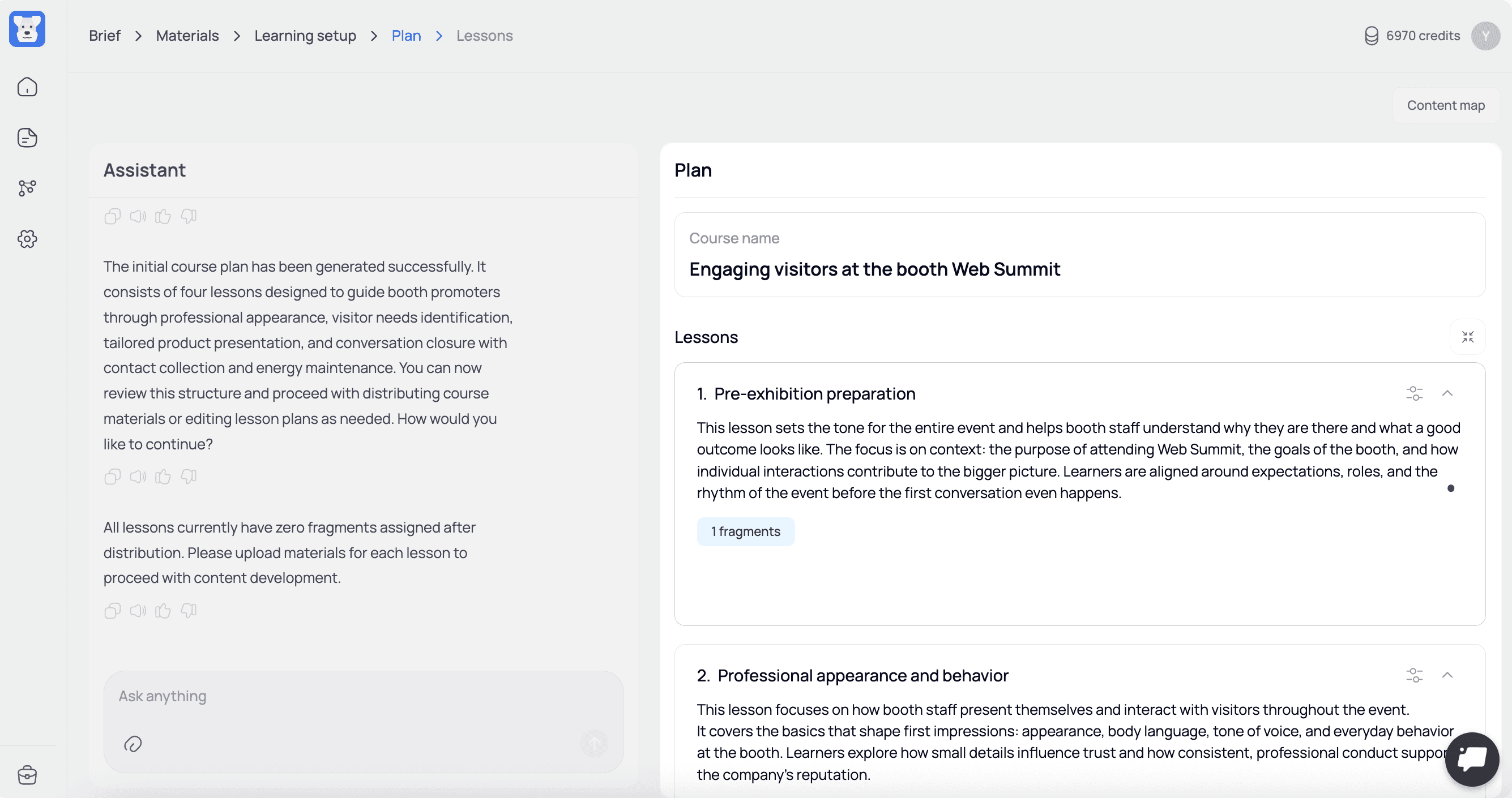
At this stage, you review the plan for the future course and make sure it looks right before any lessons are generated.
The AI breaks all the information you provided into clear, logical parts and shows what will be covered in each lesson. You can see the full flow of the course at a glance instead of discovering issues later, lesson by lesson.
This is also where you see how each lesson is connected to specific documents and materials you added earlier. That makes it easy to verify that the structure is grounded in real sources and to adjust anything that feels off.
If needed, you can tweak the plan by:
reordering lessons
removing or merging sections
editing each section plan
or asking the AI bot to rethink a specific part.
In our case, the suggested outline already fits the goal: a practical, time-bound course that prepares booth staff for the exhibition and aligns them around expectations and behavior. We’re happy with the structure, so we move on to generating the lessons.
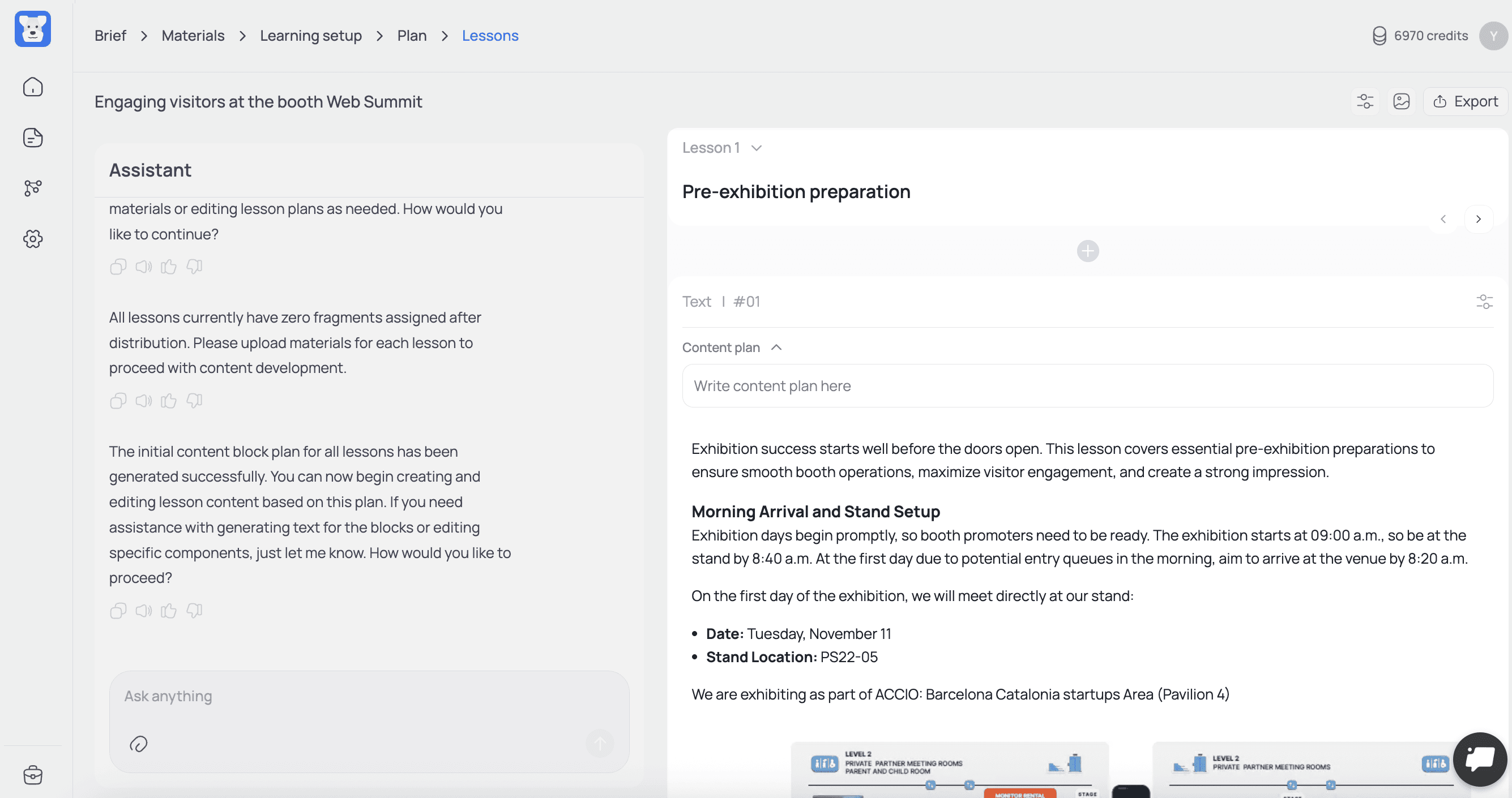
Step 5: Generate AI-powered lessons
This is where you see a full preview of the course. All lessons are generated, formats are in place, and you can review how everything works together as a complete learning experience.
At this stage, you can:
edit any text
see how different formats flow together
and add anything you feel is missing
generate missing media assets
Export a SCORM-ready course from an AI course creator to any LMS
Once the course is ready, exporting it is straightforward. With one click, you generate a SCORM-ready file that can be uploaded to any LMS.
There’s no additional formatting, no technical setup, and no manual adjustments required. The course structure, interactions, and media are all packaged automatically in a format your LMS already supports.
This makes it easy to:
launch training immediately,
distribute it across different teams or regions,
and update the course later without rebuilding it from scratch.
From creation to deployment, the entire workflow stays simple and fast, even when your training infrastructure isn’t.
From idea to live course in under 30 minutes
This is the course we created following the steps above: https://share.foxtery.com/u6GZSJ8Mdco
From initial context to a SCORM-ready file, the whole process took less than 30 minutes.
That’s what releasing learning at business speed actually looks like. No long production cycles, no waiting for the “perfect” version — just timely, structured training that ships when the business needs it.
If this workflow resonates with how your team works today, try Foxtery and let us know what you think.

